Generating one barcode takes seconds. Generating 500 barcodes for a product catalog refresh takes a system. Without one, you'll spend an afternoon in spreadsheets, produce a ZIP file full of identically-named files, and still wonder whether the symbology matches what your scanner expects.
This guide builds that system — the right barcode format for your use case, how to structure your input data, how to name and organize output files, and what to verify before you hand the batch to a printer.
Choose your symbology before you touch the generator
Every barcode format encodes different data in different amounts of space. Using the wrong format doesn't produce a visible error — it produces a barcode that looks fine but won't scan at the expected reader. The most common business formats:
- ▸Code 128 — warehouse and fulfillment operations. Encodes alphanumeric data including item numbers, lot codes, and SKUs. Most 3PLs and warehouse scanners expect this format.
- ▸EAN-13 — retail in Europe, Asia, and internationally. 13 digits. Requires a GS1 company prefix if you're selling through major retailers.
- ▸UPC-A — retail in the United States and Canada. 12 digits. Same GS1 requirement applies for retail distribution.
- ▸QR Code — mobile scan environments. Encodes URLs, plain text, and contact info. Standard for in-store signage and packaging that needs to link somewhere.
- ▸Data Matrix — pharmaceutical and electronics. Dense encoding in a small footprint. FDA-mandated for direct-part marking on medical devices under UDI regulations.
- ▸Code 39 — automotive and defense legacy systems. Alphanumeric, low density. Still required by some industrial scanning environments.
A Code 128 barcode will not scan at a retail POS that expects EAN-13. A UPC-A will not satisfy an Amazon FBA inbound requirement if Amazon assigned an FNSKU. Verify the expected format with your distribution partner before generating a single barcode.
Structure your input data
A bulk barcode generator takes a list of values and produces one barcode per value. The quality of your output depends entirely on the quality of your input list.
What your CSV needs
Each row should contain one value — the data to encode — and an optional label for the output filename. A clean structure:
012345678901,SKU-WIDGET-RED-M
012345678902,SKU-WIDGET-RED-L
012345678903,SKU-WIDGET-BLUE-M
The value column is what gets encoded. The label column names the downloaded file. Without the label column, generators name files by index — useful for testing, useless when you're matching 500 files to a packing list at 11pm before a shipment.
Data validation before upload
- !EAN-13 / UPC-A check digits: the generator calculates them, but if your source data already includes check digits, verify they match. A GS1 check digit calculator confirms the math before you commit to a print run.
- !No duplicates: two products sharing one barcode is an inventory audit failure and a retail compliance problem. Run a duplicate check on your value column before upload.
- !Excel leading-zero stripping: EAN-13 and UPC-A codes starting with zero lose that zero if Excel auto-formatted the column as a number. Format the column as text before exporting to CSV.
- !Code 128 length: no encoding length restriction, but scanners have practical limits. Keep encoded data under 40 characters for reliable decode across all scanner models.
Configure the generator for your output
Resolution
Print resolution determines whether your barcode scans reliably at the intended size. The practical minimums: 300 DPI for retail POS scanners, 200 DPI for industrial warehouse handheld scanners, 600 DPI for pharmaceutical direct-part marking.
If your generator offers only pixel dimensions, convert: a 2-inch wide Code 128 barcode at 300 DPI requires at least 600 pixels width. Download at the highest resolution available, then let your design software scale down if needed. Scaling up after the fact degrades the barcode.
Output format
PNG covers most digital and print workflows. SVG is the right choice when you need to scale barcodes to arbitrary print sizes without quality loss — vector barcodes remain lossless at any dimension. PDF for print-ready workflows where the barcode lives inside a document template.
Human-readable text
Most barcode standards require human-readable text printed below the symbol. This isn't aesthetic — it allows manual entry if the scanner fails at receiving or POS. Verify that your generator renders this text at legible size (minimum 8pt at print dimensions) before approving a full batch.
Validate the output batch
A bulk download produces a ZIP file containing one barcode file per input row. Before handing it to design or print:
- Extract and verify the file count matches your input row count exactly
- Spot-scan 5–10 random files with a phone scanner app — confirm encoded data matches source values
- Test print a small set at the intended print size before committing the full run
- Check that filenames follow your naming convention and will sort predictably
For ongoing operations — product catalog updates, seasonal inventory additions — build a repeatable template. Keep a master CSV with your full catalog. Run the bulk generator against filtered subsets when you add SKUs. Name batch archives by date and purpose so you can reconstruct which version of a barcode shipped with which product run.
Common failure modes
| Problem | Root Cause | Fix |
|---|---|---|
| Scanner won't read barcode | Wrong symbology for scanner model | Verify expected format with scanner vendor documentation |
| Barcodes scan wrong value | Leading zeros stripped by Excel | Format value column as text in Excel before CSV export |
| Barcode rejected at retailer | Check digit mismatch for EAN/UPC | Validate check digits with GS1 check digit calculator |
| Blurry barcodes after printing | Resolution too low for print size | Download at 300+ DPI; use SVG format for scalable output |
| Can't match files to products | No label column in input CSV | Add a label column to your CSV template before next batch |
When to generate QR codes in the same batch
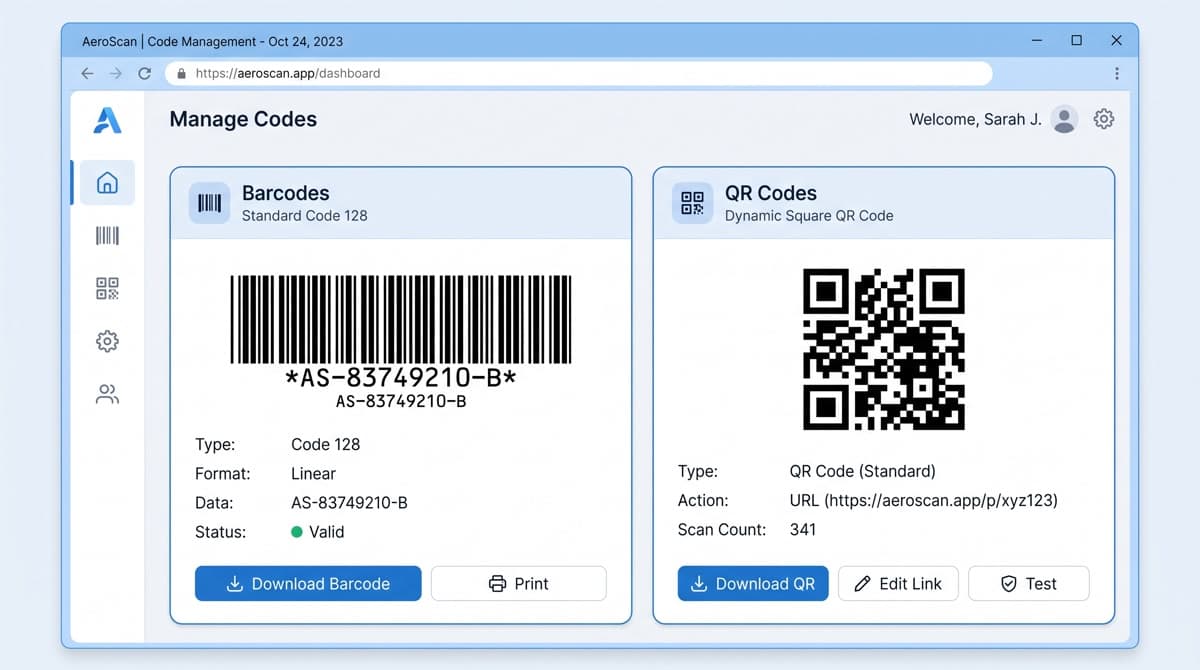
Retail products increasingly carry both a 1D barcode for POS scanning and a QR code for consumer engagement — a product registration link, an ingredients page, a warranty portal. Running separate tools for each format doubles your file management overhead and creates version drift risk: the barcodes ship with the updated batch but the QR codes still reference a URL from three months ago.
A platform that handles both formats from one input list eliminates that problem. On MyQR Barcode Generator, bulk creation runs from a single dashboard — upload your SKU list, configure both barcode and QR code settings, download one ZIP containing everything. The Advanced plan covers 1,000 barcodes per month across all formats, plus 100 dynamic QR codes that can be updated after printing.
Generate your first bulk batch
No account required for your first barcodes. Upload a CSV, choose your format, download the ZIP.
Open the Barcode Generator